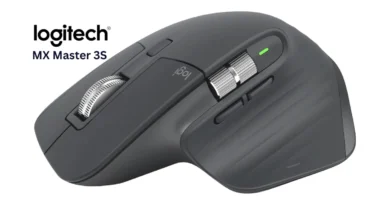
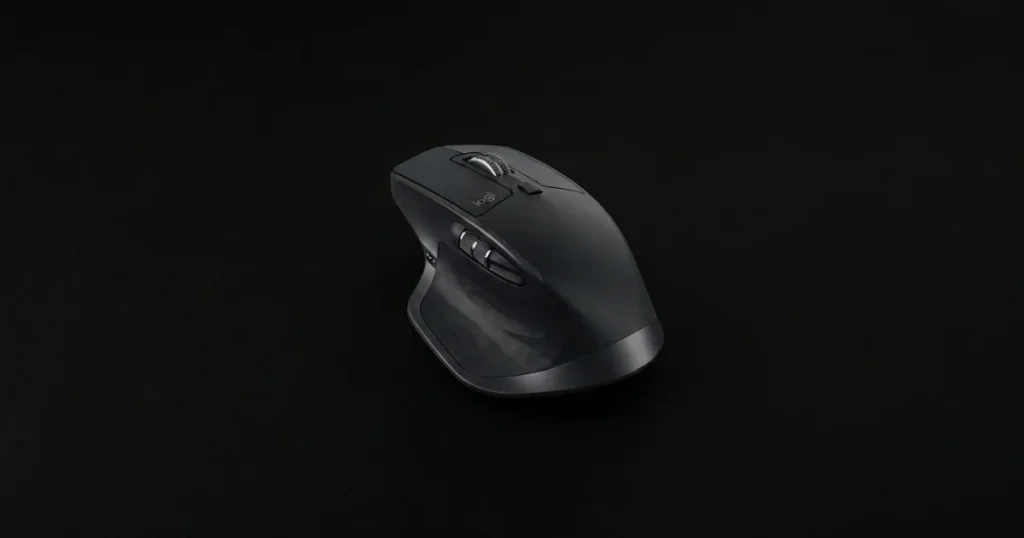
Logitech MX Master 4 Review (2026): Is the Haptic Upgrade Worth It?
Disclosure: This post contains affiliate links. As an Amazon Associate, I earn from qualifying purchases, at no extra cost to you.
Specs and pricing last verified: October 2026, against Logitech’s own specification pages and independent reviews.
Quick Answer: Is the Logitech MX Master 4 Worth Buying?
Yes, for most productivity users. The Logitech MX Master 4 is the first MX Master with built-in haptic feedback, and its Haptic Sense Panel opens the Actions Ring, a radial shortcut menu that appears at your cursor.
It keeps the Darkfield sensor (up to 8,000 DPI), MagSpeed scrolling, and 70-day battery life, and its US list price is $119.99.
If you already own an MX Master 3S, the upgrade is optional. If you are coming from an older or cheaper mouse, it is an easy recommendation.
Logitech MX Master 4 Key Facts at a Glance
| Spec | Details |
| US list price | $119.99 (check Amazon for today’s price) |
| Sensor | Darkfield high-precision, 200 to 8,000 DPI (ships at 1,000 DPI) |
| Glass tracking | Yes, on glass at least 4 mm thick |
| Buttons | 8 |
| Scroll wheel | MagSpeed electromagnetic, up to 1,000 lines per second |
| New feature | Haptic Sense Panel that opens the Actions Ring |
| Click noise | Quiet Clicks, 90% less noise than the MX Master 3 |
| Battery | Rechargeable 650 mAh, up to 70 days per charge |
| Quick charge | 1 minute of USB-C charging gives about 3 hours of use |
| Connectivity | Bluetooth Low Energy or the Logi Bolt USB-C receiver (included with the standard version, not with the Mac edition) |
| Size and weight | 128.15 x 88.35 x 50.8 mm, 150 g |
| Software | Logi Options+ |
What Is New in the Logitech MX Master 4?
The MX Master 3S shape is still recognizable, but this is more than a cosmetic refresh. Four changes matter.
1. Haptic Sense Panel
The thumb rest now contains a haptic panel that gives you a small tactile pulse when something happens on screen. Logitech describes feedback for actions such as switching desktops, adjusting sliders, and using shortcuts. Haptic feedback is on by default. In Logi Options+ you can change its intensity or switch it off entirely, and in battery saving mode it turns off at 10% battery.
One limit to know about: Logitech says haptic feedback works with key Options+ features (Actions Ring, Smart Actions, and Gestures) and with plugins for Adobe Photoshop, Adobe Lightroom Desktop, and Zoom. It is not a system-wide effect in every app, so check that your main tools are supported before paying for it. Haptics also need Logi Options+ installed, and Logitech’s haptics page lists version 1.83 or higher.
2. A Dedicated Panel for the Actions Ring
The Actions Ring is a customizable circular overlay that appears at your cursor, holding the tools and shortcuts you use most in each app. The idea is to keep your hand on the mouse instead of reaching for the keyboard or hunting through menus. On the MX Master 4, you push and release the Haptic Sense Panel to open it, hover over a bubble, and left-click.
The Actions Ring is not exclusive to this model, since Logitech also publishes setup guides for it on the MX Master 3S. The MX Master 4 adds a dedicated panel to open it, plus haptic feedback as you move between bubbles.
Logitech claims it can cut mouse movement by up to 63% and save up to 33% of your time. Treat that second number with care: it comes from a 2025 Logitech Ergo Lab study of 37 MX Master users across eight desktop actions, so it is a manufacturer-run result, not an independent benchmark. Your savings will depend on how much you customize it.
3. Stronger Wireless Connection
Logitech says a new radio chip and a better antenna layout give 2X more powerful connectivity than the MX Master 3S. The receiver is now Logi Bolt USB-C, and it is included in the box of the standard version. That is helpful on modern laptops, but if your computer only has USB-A ports, you will need an adapter or you can use Bluetooth. The MX Master 4 for Mac edition does not include the receiver and connects over Bluetooth.
4. Better Build and Coating
The shell has an improved stain-resistant coating and polished microtextures, and the thumb rest is larger to make room for the haptic panel. After long days of use, a mouse that stays cleaner genuinely matters.
Performance: Sensor, Scrolling, and Battery
Tracking on Almost Any Surface
The Darkfield sensor tracks from 200 to 8,000 DPI and keeps working on glass, as long as the glass is at least 4 mm thick. For design work and spreadsheets alike, you can fine-tune DPI in Logi Options+. The mouse ships at 1,000 DPI, so raise it there to reach the full 8,000.
MagSpeed Scrolling
The electromagnetic wheel switches between click-by-click scrolling for precision and a free-spin mode that Logitech rates at up to 1,000 lines per second. If you scroll through long documents, code, or video timelines all day, this is still one of the best wheels on any mouse.
Battery Life and Charging
Logitech rates the battery at up to 70 days per full charge. Real-world numbers will be lower with heavy haptic use. In its hands-on review, Notebookcheck said a month should be easy even with intensive use. A one-minute USB-C quick charge gives about 3 hours more.
Here is a detail many listings skip: the USB-C charging cable is not included in the box, so make sure you have one.
How to Set Up the Actions Ring in Logi Options+
The Actions Ring only works with Logi Options+, so set that up first. Menu labels can change between Options+ versions, so treat these steps as a guide.
- Start by getting Logi Options+ running on your Windows or macOS computer. Logitech’s haptics page lists version 1.83 or higher.
- Connect the mouse over Bluetooth or the Logi Bolt receiver. In Options+, click Add device, then Set up device.
- Select MX Master 4, open the Haptic feedback menu, and click Open Actions Ring. The ring holds eight actions.
- Assign your tools to the bubbles, and build a separate ring for each app you use most. Folders add more slots, and Logitech says they give up to 72 extra controls.
- Try it: push and release the Haptic Sense Panel to open the ring, hover over a bubble, then left-click.
- Open the Haptic feedback settings to change the intensity or turn haptics off.
Logitech MX Master 4 vs MX Master 3S: Is the Upgrade Worth It? (2026 Comparison)

Thinking about upgrading from the previous model? Here is how they compare. If you want the full picture of the older mouse, read our Logitech MX Master 3S review.
| Feature | MX Master 3S | MX Master 4 |
| Haptic feedback | No | Yes |
| Actions Ring | Yes, through Options+ (no haptics) | Yes, opened from the Haptic Sense Panel |
| Sensor | 8,000 DPI Darkfield | 8,000 DPI Darkfield |
| Click noise | Quiet Clicks | Quiet Clicks |
| Receiver | Logi Bolt USB-A | Logi Bolt USB-C (included, standard version) |
| Battery | 500 mAh, up to 70 days | 650 mAh, up to 70 days |
| Weight | 141 g | 150 g |
| Approx. list price | about $100 | $119.99 |
The honest takeaway: the sensor, scroll wheel, and battery rating are essentially the same.
You are paying about $20 more for haptics, a dedicated Actions Ring panel, and a stronger wireless setup.
Logitech compares the MX Master 4’s click noise against the older MX Master 3, so you should not expect it to be quieter than the 3S.
Who Should Buy the MX Master 4?
It is a strong fit if you:
- Work in Photoshop, Lightroom, or video calls where haptic plugins exist
- Spend your day in apps with lots of repeated menu actions
- Are upgrading from an MX Master 2S or a basic office mouse
- Want a quiet mouse for shared offices or late-night work
You can skip it if you:
- Already own an MX Master 3S and mostly want a comfortable, accurate mouse (the Actions Ring already works there through Options+, just without haptics)
- Mainly play competitive games (the 125 Hz report rate is low for fast-paced gaming)
- Do not want to spend time customizing the Actions Ring in Options+
Sustainability: What Is the MX Master 4 Made Of?
Logitech highlights several sustainability points for the MX Master 4. These are manufacturer claims taken from the product listing, so treat them as Logitech’s own figures rather than independent audits.
- Recycled plastic: The plastic parts include certified post-consumer recycled plastic: 54% for the Graphite/Black model and 48% for Pale Gray. The recycled-content figure only covers the mouse body, so the receiver, internal circuit board, cable, and packaging are not counted.
- Low-carbon aluminum: The aluminum thumbwheel is made with renewable energy instead of fossil fuels, which lowers its carbon impact.
- Recycled cobalt battery: Logitech says the battery uses 100% recycled cobalt, measured by mass balance or direct measurement of segregated flows. That reduces the need for newly mined cobalt.
- Responsible packaging: The paper packaging comes from FSC-certified forests and other controlled sources.
What this means for buyers: If sustainability matters to you, these are real positives, but they are only part of the picture.
The recycled content is partial (around half of the plastic, not all of it), and the figures vary by color.
The most sustainable choice is still to use a mouse for many years. If you already own a working MX Master 3S, keeping it is greener than upgrading.
Pros and Cons
Pros
- First MX Master with real haptic feedback
- Actions Ring keeps shortcuts at your cursor
- Excellent sensor, tracks on glass
- MagSpeed scrolling and quiet clicks
- 70-day rated battery with fast USB-C charging
- Logi Bolt USB-C receiver included (standard version)
- Recycled plastic, recycled cobalt battery, and FSC-certified packaging
Cons
- Higher price than the 3S
- Haptics only work with supported features and plugins
- Charging cable not in the box
- Heavier than the 3S at 150 g
- Bolt receiver needs a USB-C port or an adapter, and the Mac edition does not include one
Best Logitech MX Master 4 Alternatives
The MX Master 4 is not the right shape or price for everyone. These three Logitech mice cover the most common reasons people look elsewhere.
| Mouse | Best for | What to know | Trade-off |
| MX Master 3S | Most of the experience for less | Same 8,000 DPI sensor, MagSpeed wheel, and Quiet Clicks, with Actions Ring support through Options+ | No haptic feedback |
| MX Anywhere 3S | Travel and small desks | Compact symmetrical shape, about 99 g, 8,000 DPI sensor, up to 70 days of battery | Smaller body, and RTINGS notes the Bolt receiver is sold separately |
| Logitech Lift | Wrist comfort | Vertical design at a 57° angle, suited to small and medium hands, left-handed version available, runs on an AA battery | Lacks the MX Master’s side wheel and tilt buttons |
How to choose: pick the 3S if you want the same core mouse at a lower price, the MX Anywhere 3S if you carry your mouse around, and the Lift if wrist strain is your main concern.
Frequently Asked Questions
Is the Logitech MX Master 4 worth it in 2026?
For most productivity users, yes. It adds haptic feedback and a dedicated Actions Ring panel to an already excellent mouse for a US list price of $119.99. If you own an MX Master 3S and are happy with it, the upgrade is a nice-to-have, not a must.
What is the difference between the MX Master 4 and MX Master 3S?
The MX Master 4 adds a Haptic Sense Panel that opens the Actions Ring with haptic feedback, a Logi Bolt USB-C receiver, a 650 mAh battery, and a stronger wireless chip. The sensor, scroll wheel, and 70-day battery rating are essentially unchanged.
How long does the MX Master 4 battery last?
Logitech rates it at up to 70 days on a full charge. Heavy use of haptic feedback will shorten that. A one-minute quick charge gives about three hours of use.
Does the MX Master 4 work on glass?
Yes. The Darkfield sensor tracks on glass that is at least 4 mm thick.
Can I turn off haptic feedback?
Yes. Haptic feedback is on by default, and you can switch it off entirely or change its intensity in the Haptic feedback settings in Logi Options+. In battery saving mode, haptics turn off automatically at 10% battery.
Does the MX Master 4 come with a receiver?
The standard MX Master 4 includes a Logi Bolt USB-C receiver. The MX Master 4 for Mac edition does not include one and connects over Bluetooth. The USB-C charging cable is not included with either version.
Is the MX Master 4 good for gaming?
It is built for productivity, not competitive gaming. Its 8,000 DPI sensor is accurate, but the listed 125 Hz report rate and 150 g weight favor control over fast reflex play.
Does the MX Master 4 work with Mac?
Yes, over Bluetooth or the Bolt receiver (the receiver comes with the standard version only). Logitech also sells a separate MX Master 4 for Mac edition, so confirm which version you are buying before checkout.
Is the Logitech MX Master 4 made from recycled materials?
Partly. According to Logitech, the plastic parts include certified post-consumer recycled plastic: 54% for the Graphite/Black model and 48% for Pale Gray, excluding the receiver, printed wiring assembly, cable, and packaging. The battery uses 100% recycled cobalt, the aluminum thumbwheel is made with renewable energy, and the paper packaging comes from FSC-certified forests and other controlled sources. These are manufacturer claims, so check Logitech’s sustainability page for the latest figures.
Final Verdict: Should You Buy the Logitech MX Master 4 ?
The MX Master 4 is the best productivity mouse Logitech has made, and the haptic panel and its tie-in with the Actions Ring are real additions rather than gimmicks, as long as you use supported apps and spend a few minutes setting things up.
At $119.99 list, it is easy to recommend if you are upgrading from an older mouse. If you already have a 3S, wait for a discount or skip it.
Buy it if you want haptic feedback and a faster shortcut workflow, especially coming from an older mouse. Skip it if your MX Master 3S already does everything you need.
Some Amazon listings mention a complimentary 1-month Adobe Creative Cloud subscription with purchase. Offers vary by version and region, so check the listing before you buy.
More essential accessories that will make your work easier.
A few small add-ons can make the MX Master 4 easier to carry, charge, and connect.
- USB-C charging cable: The mouse does not ship with one, so pick one up if you do not have a spare. Find USB-C cables on Amazon.
- USB-C to USB-A adapter: The Logi Bolt receiver is USB-C, so if your computer only has USB-A ports, an adapter solves it. Bluetooth also works as an alternative. Find USB-C to USB-A adapters on Amazon.
- Hard storage case: Amazon’s listing says the Lebakort case is compatible with the MX Master 4, MX Master 3S, and MX Master 3. Useful if you carry the mouse in a bag. Check it on Amazon.